Personal automation, by Epiphani Studios

What you say is what you get.

Say what should happen, in one sentence. The robot is designed for you and shown as a pipeline you can read, toggle, and correct. No canvas to learn; every field stays editable. No meter on runs.

It runs on your Mac, listens to text messages and email, and sends to Slack, email, iMessage, webhooks, and Shortcuts.

Type the sentence. Read the robot.Watch a sentence become a robot
60 sbetween check-ins: every robot is tried on each Mac every minute
5views of the same robot, so you read it the way you think: pipeline, cards, columns, table, or lanes
6destinations with ordered fallback: Slack, email, iMessage, webhook, Shortcut, log
$0per run, on every plan. Designs are counted monthly; runs are never counted

The problem

You know exactly what you want. The tools make you build it.

"When the bank texts me a code, put it in the team Slack." That sentence is the whole job. Yet the tools hand you a canvas of nodes, a card composer with a filter language, or a Shortcuts automation that quietly stops working the day you reinstall Mail. You end up learning the tool instead of getting the thing.

And when it finally runs, you cannot tell what it will do next month, because the logic lives in a diagram you built once and never opened again. The fix is not a smarter builder. It is a sentence that builds the first version, every field left open to change, and nothing hidden about what was built.

How it works

Say it. Read it. It runs.

01

Say it

Type one sentence the way you would say it to a person: who sends what, what matters in it, where it should go. Names you have used before resolve to the real people and channels.

02

Read it

The robot appears as a three-step pipeline: Trigger, Filter, Deliver. Every input is named, every destination is explicit, and the fallback order is written out. Change any step, then save. Nothing runs until you do.

03

It runs

Your Mac checks every minute, tries each robot, delivers in order, and writes one line to the activity feed: which robot fired, where it sent, which Mac did it. On Pro, more than one Mac can run the same robots without double-sending.

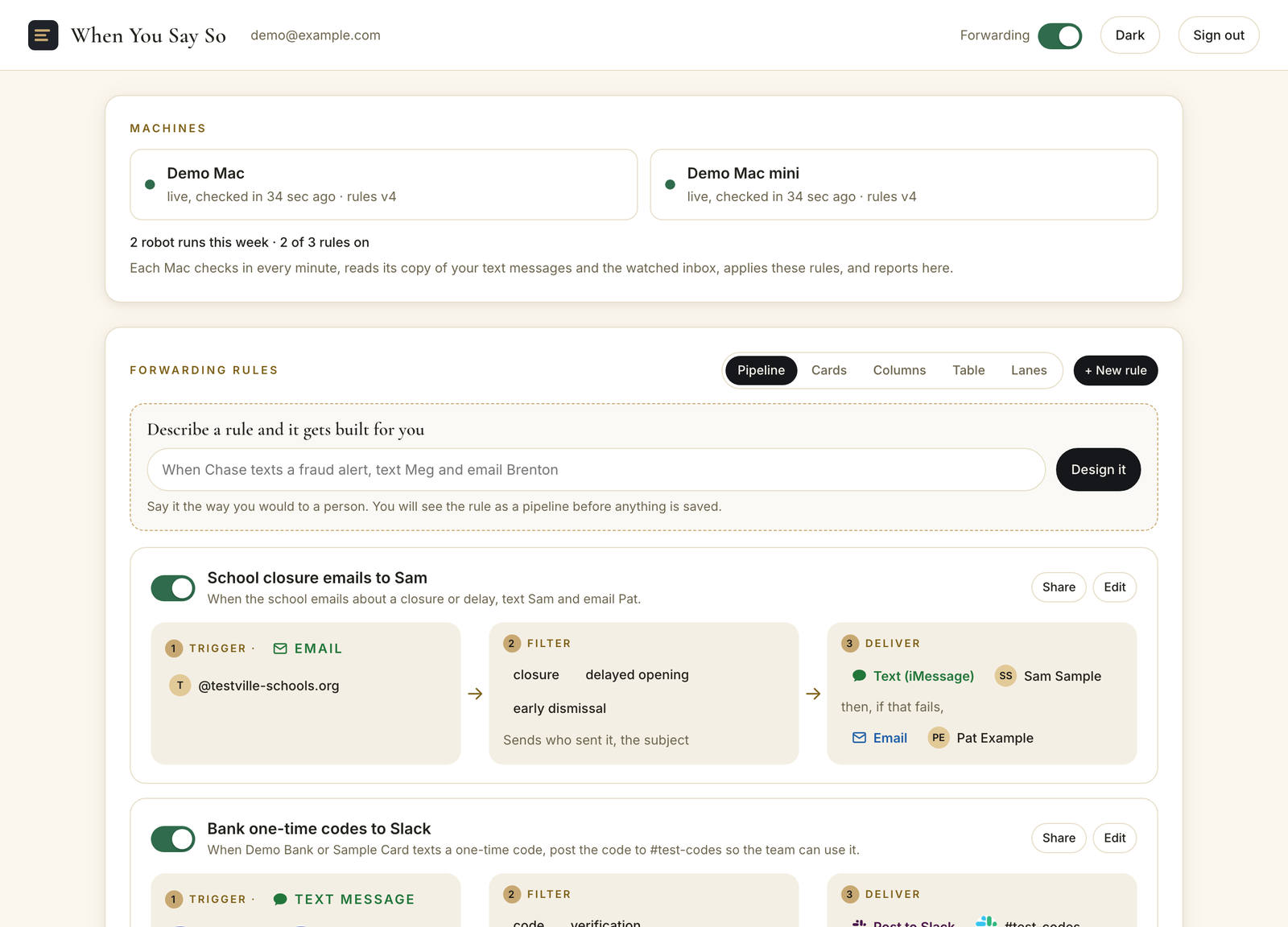
The When You Say So console in the pipeline view: two demo machines checking in, a Describe a rule box, then robots drawn as Trigger, Filter, Deliver, with an Email input badge on the first and a Text message badge on the second

The console in the pipeline view, on a demo account.

What it does

Built for the household and the one-person company.

Sentence in, robot out

A language model designs the rule from your words: senders, plain-English phrases to match, a template, destinations in order. It proposes; you approve.

Two inputs, always named

Text messages arriving on your Mac and email arriving in the inbox you connect. Every robot wears its input on the page, so there is never a question of what it watches.

Text messageEmail

Six destinations, ordered

The second destination fires only if the first fails. A code that cannot reach Slack reaches your inbox instead of vanishing.

SlackEmailiMessageWebhookShortcutLog

Five ways to read it

Pipeline, cards, columns, table, lanes. Same robots, the layout you think in. Your choice is remembered.

A share link per robot

Every robot has a read-only page showing that one pipeline and nothing else from your account. Send it to the person it helps; switch it off any time.

Machines you can see

Each Mac reports its last check-in and which version of your robots it holds. A master switch pauses all delivery while keeping the log.

Pull a value out

Ask for "the code" or "the amount" and the robot captures it from the message and puts it in what it sends.

No double sends

On Pro, several Macs can run the same robots; a delivery is made once, whichever machine gets there first.

Plain English everywhere

Filters read as phrases, not patterns; for email they match the subject and preview. Templates read as "who sent it, the code, the time". You never see a regular expression unless you ask for one.

Why a pipeline

The pipeline is the product.

Every automation tool has the same three parts: something arrives, something is checked, something is sent. The difference is whether you can see them. A canvas of nodes shows the mechanism to the person who built it and hides it from everyone else, including the builder six months later. A chat transcript shows the conversation and hides the mechanism entirely.

So we made the pipeline the only thing you ever look at. Trigger, Filter, Deliver, left to right, in the words you used. The model that designs a robot has to produce that pipeline, not a script, which means the thing it made is the thing you read. When a robot misbehaves, you open it and the mistake is sitting in one of three boxes.

The five views exist because people think in different shapes. A bookkeeper wants the table. A household wants the cards. The pipeline is the default because it is the one a first-time reader understands without being told.

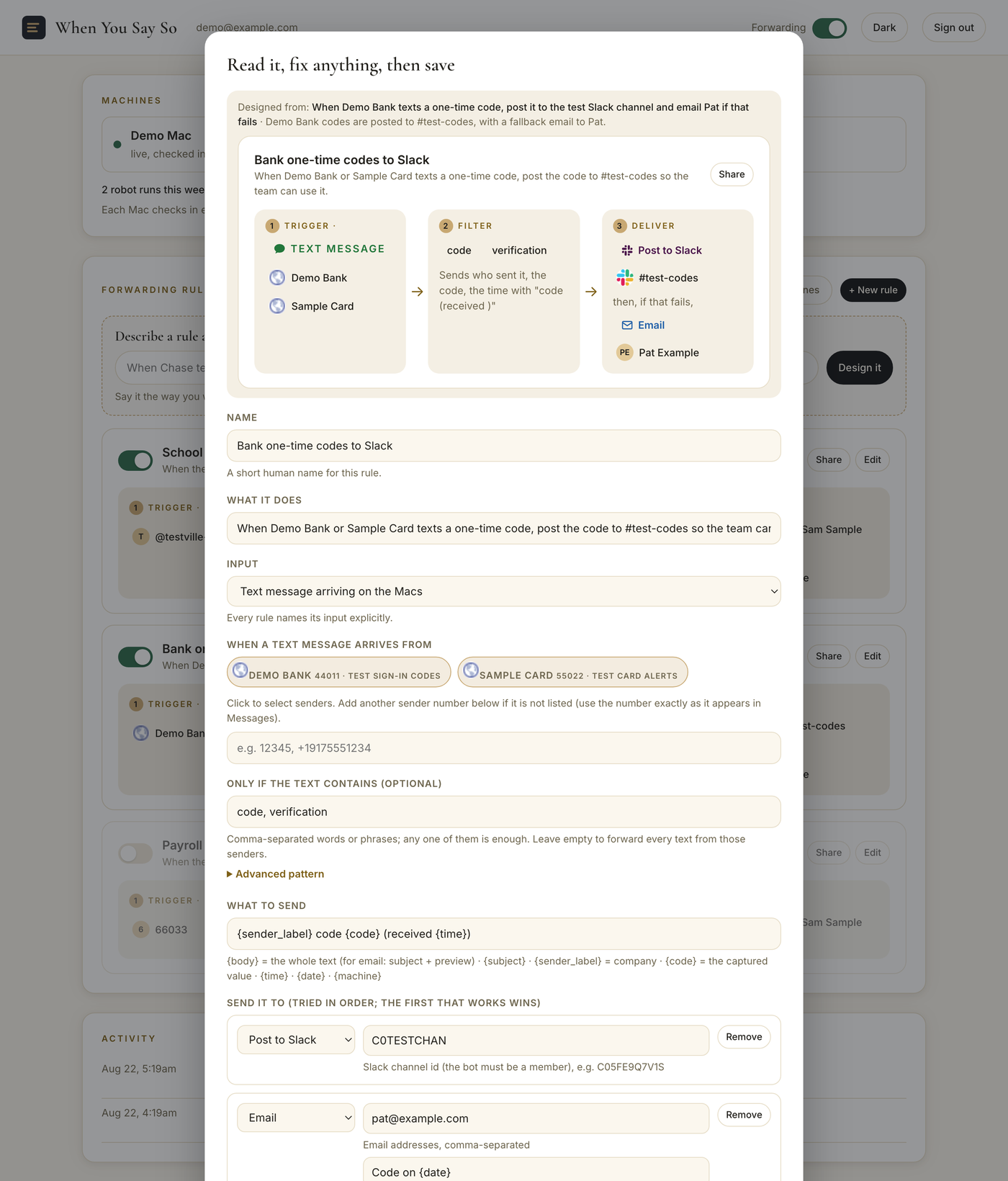
A designed rule opening in the editor: the sentence it came from, the pipeline preview (Trigger: text message from Demo Bank and Sample Card; Filter: code, verification; Deliver: post to Slack, then if that fails, email Pat), and the editable fields below

For the household

School emails, camp forms, the pediatrician's portal, the card that only one of you carries. The robots route the thing to the person who needs it, the minute it arrives, on a Mac that is already on.

For the one-person company

Bank codes to the assistant, payroll alerts to the bookkeeper, a client's email into the project Slack. One console, read in the morning, with a line for everything that moved overnight.

For the small team

Shared robots, an admin view, and an audit trail of who changed what. The person who set it up can leave and the robots keep running, because anyone can read them.

Everyday moments

When you say so, it happens.

When a bank texts me a one-time code, post it to the team Slack and email Ken if that fails.

The card on file is yours; the person checking out is not. The code lands where the team is working within about a minute of arriving.

When the school emails about a closure or a delayed opening, text Meg.

The email arrives at 5:40am. The text arrives within the minute. Nobody opened a laptop.

When Gusto texts about payroll, forward it to Brenton.

The alert goes to the person who can act on it, not the one who happens to be on the account.

When the property manager emails a new lease, run my Shortcut that files it and pings the calendar.

Anything a Shortcut can do becomes a destination. Your Mac does the filing.

Setup

Five minutes on the Mac that stays home.

1

Turn on Text Message Forwarding

On the iPhone: Settings, Messages, Text Message Forwarding, switch on the Mac. From then on the Mac keeps a copy of every text, which is the copy the robots read. Your phone does nothing else.

2

Install the runner

One signed, notarized Mac app. It asks for Full Disk Access once, the permission macOS requires to read the Messages database, shows you exactly which pane to open, and checks itself every minute after that.

3

Say your first sentence

Open the console, type what should happen, read the pipeline, save. The first robot is usually the one that has been annoying you for a year.

Both of your Macs run the same robots

On Pro, a laptop that travels and a desktop that stays home can both run the same robots. Whichever Mac sees the message first delivers it; the other sees the delivery and stands down.

Heartbeats you can read

Each Mac reports when it last checked in and which version of your robots it holds. If a Mac goes quiet, the page says so in words, with the time.

A master switch

Pause all delivery while keeping the log of what would have been sent. Useful the week you are changing banks.

The activity feed and the share page

Every delivery is one line you can read.

Which robot fired, which destination took it, which Mac did the work, and the minute it happened. Failures are written in the same place, in the same size type, so a robot that stopped working is visible the same day.

The share page works the same way, turned outward: one robot, drawn as its pipeline, for the person it helps. Your spouse sees the school-closure robot exactly as it runs. Your bookkeeper sees the card-code robot and nothing about your household. The link switches off with one click.

Both are built on the same rule: the page tells you what the robot will do, in the words you would use, and never hides the mechanism behind a diagram. When a delivery fails, the feed records which destination refused and why, and the next one in the chain is tried on the spot, so the person reading the page in the morning sees the whole story of the night in one list, including the part where the backup route carried the message.

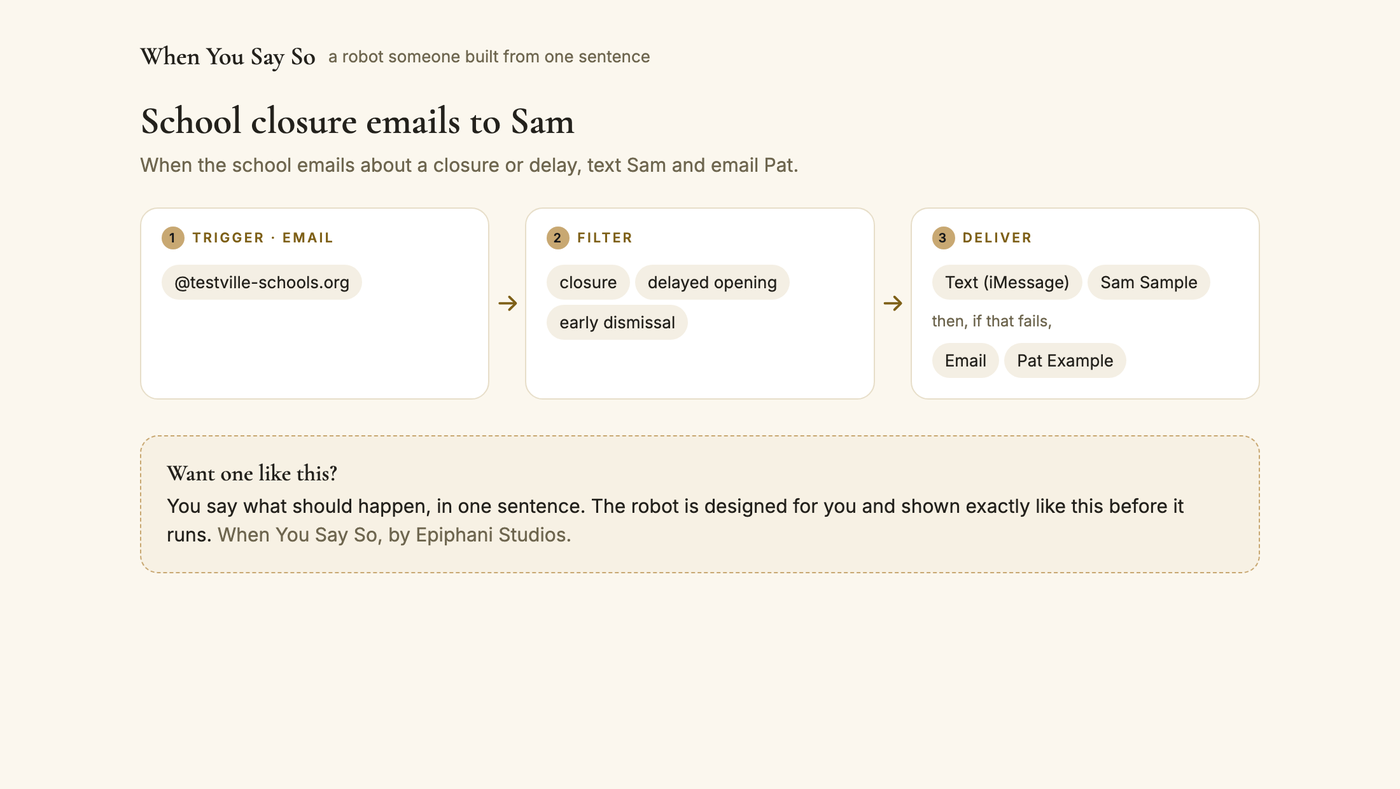
A shared robot page: 'School closure emails to Meg', drawn as Trigger (email from @school.org), Filter (closure, delayed opening, early dismissal), Deliver (text Sam, then if that fails, email Pat), with a 'Want one like this?' note

When something breaks

A robot that fails tells you. In words. The same day.

Failures are written where successes are

When every destination in a robot's chain fails, the activity feed records the robot, the reason from each destination, and the time, in the same list as the deliveries. There is no separate error console to remember to open.

A quiet Mac is named

If a Mac stops checking in, the Machines panel says "quiet, last seen 14 minutes ago" instead of a green dot that stays green. You see it before the thing it was supposed to forward matters.

Sender lists do not rot

Phone automations match on contacts, and a deleted contact silently turns a rule into one that matches nothing. Robots match on the sender number or address itself, with the company label kept beside it, so nothing decays when an address book changes.

The rule you read is the rule that runs

Both Macs pull the same robot document every minute and report which version they hold. A change you save is on every machine within sixty seconds, and the page tells you when it landed.

Delivery is confirmed, not assumed

A Slack post is confirmed by the channel; an email by the sent folder; a text by the Messages app. A destination that did not confirm is treated as failed and the next one is tried.

Nothing runs twice

Each delivery carries a stable identity built from the robot and what it extracted, so a message seen by two Macs, or seen twice by one, produces one delivery.

Where it came from

Built because a phone automation died quietly on a Thursday.

For two years a set of iPhone automations forwarded bank codes and card alerts to the people who needed them: a Slack channel for the team, two inboxes for the bookkeepers, a text to a spouse. They worked until the day the Mail app was deleted from the phone. The automations kept their green toggles and stopped sending. Nobody found out for two weeks, and the way we found out was a team member asking why the codes had stopped.

The replacement was written that night as a small program on a Mac: read the messages, match the senders, send to Slack with email as the fallback, and write a line for every delivery. It delivered to a fallback when Slack was down, it wrote a line for every send, and it did not depend on an app staying installed on a phone. It had one flaw: only the person who wrote it could read it.

So the console came next, with the robot drawn as a pipeline anyone in the house could understand. Then the sentence box, so nobody has to open an editor at all. That is the whole product: the reliable half of a script and the readable half of a sentence, on a machine that is already on.

A shared robot page: 'School closure emails to Sam', drawn as Trigger (email from @testville-schools.org), Filter (closure, delayed opening, early dismissal), Deliver (text Sam, then if that fails, email Pat)

The six words

The six words every robot is built from.

Robot

One automation: a trigger, a filter, a template, and a list of destinations. You describe it in a sentence; the page shows it as a pipeline.

Trigger

What arrives and from whom. A text message from a listed sender, or an email from a listed address or domain. Every robot names its trigger on the page.

Filter

What has to be in the message for the robot to act: plain phrases like "closure" or "verification code", any one of which is enough. Leave it empty and every message from those senders passes.

Template

What the robot sends: the whole message, or a sentence built from the pieces it pulled out, like the code, the time, and who sent it.

Deliver

Where it goes, in order. The first destination that confirms ends the chain; the next is the fallback.

Design

The moment you type a sentence and the robot is drawn for you. Each plan includes a monthly number of designs; runs are never counted.

Compare

The same promise, without the builder.

Every price below was read from the vendor's own pricing page on August 21, 2026, and is linked so you can check it. Every tool here is good at what it does; the rows are the things we built this for.

Versus the alternativesWhen You Say SoIFTTTZapiern8nMakeApple Shortcuts
Describe it in one sentence and read the result as a pipeline before it runsYes, on every planCard composer; AI Copilot on paid plansCopilot drafts a Zap from textAI Workflow Builder on cloud plansMaia in the scenario builderManual When / Do cards
Meter on runsNone. Unlimited runs on every planApplet count (2 free, 20 Pro)Tasks per month (100 free, 750 at $19.99)Executions per month (2,500 Starter)Operations per month (1,000 free)None
Text messages as an inputYes, from the Mac's copy of your messagesVia a third-party SMS serviceVia a third-party SMS serviceVia a third-party SMS serviceVia a third-party SMS serviceOn the iPhone, one automation at a time
Every robot names its input and its destinations on the pageYes, with a badge per rulePer applet detail viewPer Zap editorPer node on the canvasPer module on the canvasPer automation
Ordered fallback delivery (try Slack, then email)Yes, built into every robotMulti-action on ProPaths on paid plansError workflowsError handlers and routersIf/Otherwise actions
Read-only share page per automationYes, one link per robotPublish an applet for others to connectShare a Zap templateExport JSON or publish a templateTemplate sharingShare a shortcut file
Entry price$0 for 3 robots; Pro $19.99 per month billed annually$0 for 2 applets; Pro $2.99; Pro+ $8.99$0 for 100 tasks; Professional from $19.99 annualStarter EUR 20 annual; free self-hosted$0 for 1,000 operations; Core $12 annualFree, built in

Sources: the linked vendor pages, read August 21, 2026. Plan names and limits are theirs; "Yes" in our column means shipped and running today.

Privacy

Messages are read on your Mac. Here is exactly what leaves it.

Your messages stay home

Text messages are read from the copy Messages keeps on your Mac, by a small program that runs every minute. Message bodies are never uploaded to us.

Email is read, not kept

The inbox you connect is read with a read-only permission. Robots match on the subject and the preview text, and nothing is stored beyond the robot's own record of what it sent.

What the service stores

Your account email, your robots (the rules), your contacts' labels, the activity feed (one line per delivery: which robot, where it sent, when, which Mac), each Mac's check-in time, and, on paid plans, billing handled by the payment processor. Visit counts on this page are collected only if you allow them below.

Designing a robot

When you type a sentence, that sentence, your rule names, your sender labels, and your recipient names go to the language model that designs the rule. Message bodies do not.

Share pages show one thing

A shared robot renders only that robot's own data. Nothing about your other robots, contacts, or activity is on that page, by construction and by test.

Sign in with Epiphani

One account across Epiphani Studios products. No passwords to keep for this one.

Pricing

No meter on runs. Ever.

Runs are never counted on any plan. Each plan includes a monthly number of designs, the moment a sentence becomes a robot.

Free

$0
forever
  • 3 robots, unlimited runs, 1 Mac
  • Text message and email inputs
  • All six destinations with fallback
  • 10 AI designs a month
  • Share links
Ask for an invite

Pro

$19.99 / month
billed annually at $239.88, or $24.99 month to month
  • Unlimited robots, unlimited runs
  • 200 AI designs a month
  • Priority fallback delivery
  • Up to 3 Macs, no double sends
  • 30-day money-back guarantee
Ask for an invite

Business

$34.99 / seat / month
billed annually, 3-seat minimum
  • Everything in Pro, per person
  • Shared robots across the team
  • Admin view and audit trail
  • Concierge setup of your first robots
  • 30-day money-back guarantee
Talk to us
First-year price: 50% off Pro or Business for the first year, for accounts opened by December 31, 2026. The price above is the price from year two.

FAQ

Frequently asked questions

Can it read the texts on my iPhone?

It reads the copy of your texts that Messages keeps on your Mac (Text Message Forwarding turns that on in about a minute), so a Mac that is awake is what makes text-message robots run. Apple provides no way for an app to read messages on the iPhone itself.

What does the AI actually do?

It designs the robot from your sentence: which sender, which phrases, what to send, where to send it and what to try if that fails. It never runs anything on its own. You read the pipeline it drew, change what you like, and only then save it.

Is there a task meter?

No. Every plan runs every robot as often as it fires. Each plan includes a monthly number of designs (the moment you type a sentence): 10 on Free, 200 on Pro and Business.

What can a robot send to?

Slack (a channel), email, iMessage or text message (SMS) through Messages, any https webhook, a named Shortcut on your Mac, or a plain log. Destinations are tried in order, so the second one only fires if the first fails.

What can a robot listen to?

Text messages arriving on your Mac and email arriving in the inbox you connect. Every robot names its input on the page so you always know what it watches.

Where does my data go?

Reading happens on your Mac. What leaves is exactly what you routed, to exactly where you routed it, plus a one-line activity entry (which robot fired, where it sent) so you can see your robots working. Message bodies are never stored on our servers.

Can I share a robot?

Yes. Every robot has a share link that renders that one robot as a read-only pipeline for anyone, and nothing else from your account. Turn it off with one click.

Do I need a Mac?

Yes. The runner is a Mac app because the Mac is the only place Apple lets a program read your messages, and it is also a fine place to read email. The Mac needs to be on and awake; a desktop that stays home or a laptop on a desk both work. The console is a web page you can open anywhere.

What happens if my Mac is asleep?

The robot runs on its next check-in after the Mac wakes, and it looks back over the messages that arrived while it slept and reads them too. If a message is older than the window you set, the activity feed says it was seen late rather than pretending it was on time.

Can I write the rule myself instead of a sentence?

Yes. Every robot opens in an editor with the senders, phrases, template, and destinations as plain fields. The sentence is the fast way in, never the only way.

What does an AI design cost you?

Each design sends your sentence and your labels to a language model once, with a fixed spending ceiling per call. Designs are counted against your plan's monthly number; runs are not.

Can I cancel?

One click, any time, and every paid plan comes with a 30-day money-back guarantee. Your robots keep running on the Free plan's limits.
Get in

Tell us the first sentence you would type.

Access is by invite. Leave your email and, if you like, the robot you want first. You hear back from a person.

Used only to send your invite. Nothing else, and no list.